Attachment Management & Audit
Bulk Actions
Bulk Actions
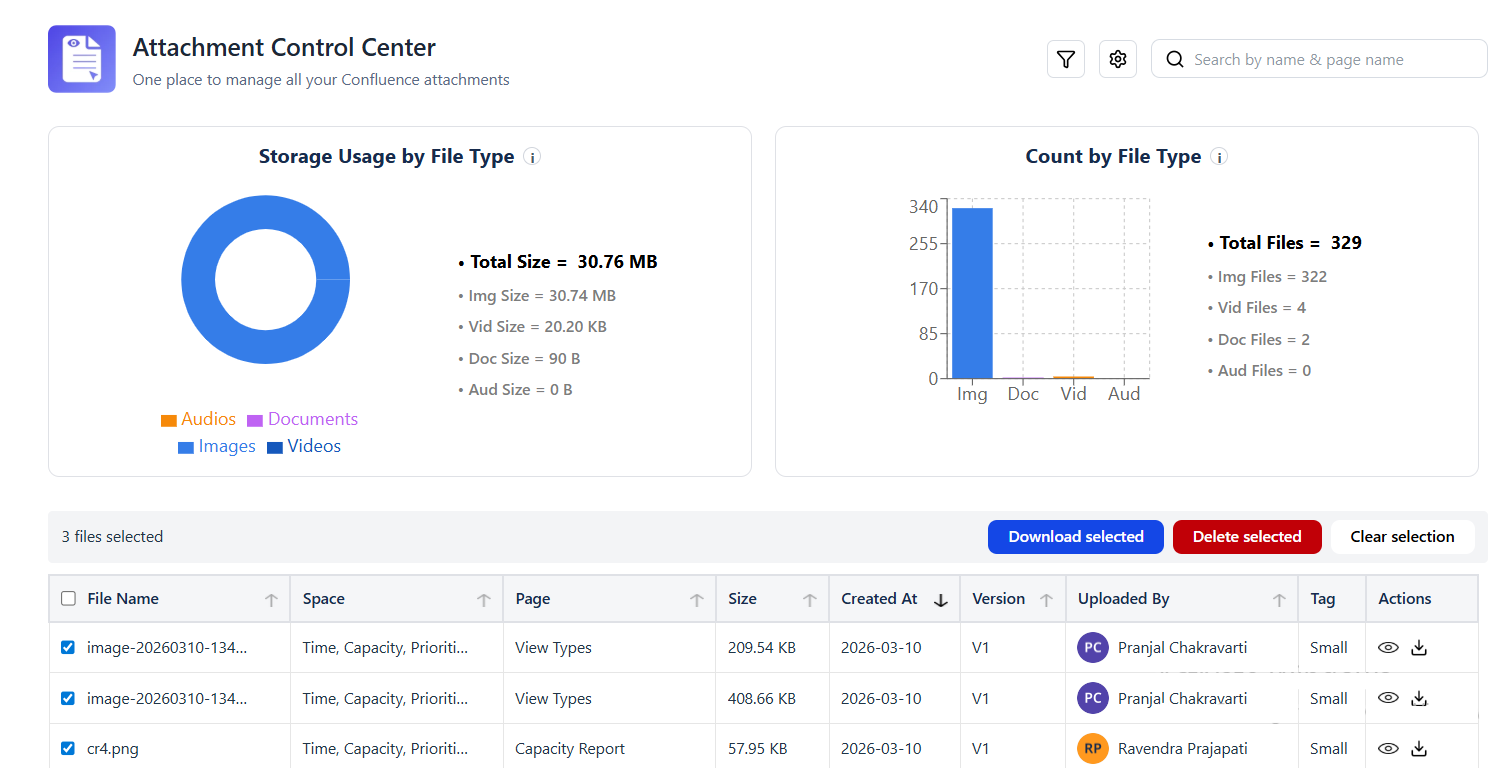
What Are Bulk Actions?
Bulk Actions let you select multiple attachments and apply an operation to all of them at once - saving time compared to performing the same action individually on each file.
Selecting Attachments
Select Individual Files
Click the checkbox at the left edge of any attachment row to select it. Selected rows are highlighted.
Select All on Page
Click the checkbox in the table header row to select all attachments currently visible on the page. This selects only the current page of results (not all pages).
Select Across Pages
To work with attachments across multiple pages of results:
- Apply filters to narrow results to the specific set you need
- Use Select All to select the current page
- An option to Select all {N} results appears - click it to extend the selection to all filtered results
Available Bulk Operations
| Operation | What It Does | Reversible? |
|---|---|---|
| Add Label | Tags all selected attachments with one or more Confluence labels | Yes - remove label to undo |
| Remove Label | Removes a specific label from all selected attachments | Yes - re-add the label |
| Delete | Permanently deletes all selected attachments from Confluence | No - permanent |
How to Delete Attachments in Bulk
- Filter the attachment list to narrow down to the files you want to remove
- Select the attachments using the checkboxes
- Click the Bulk Actions button above the attachment table
- Select Delete from the dropdown
- A confirmation dialog appears showing the count of files to be deleted and their total size
- Click View Files to expand and review each file name before confirming
- Type DELETE in the confirmation field
- Click Confirm Delete
Warning: Attachment deletion is permanent. Confluence does not have a recycle bin. Deleted attachments cannot be recovered. Always verify the selection before confirming.
How to Bulk Label Attachments
- Select the attachments you want to label
- Click Bulk Actions → Add Label
- Type or search for a label in the label picker (e.g.,
approved,archived,review) - Click Apply
- All selected attachments receive the label immediately
Safety Recommendations
- Always filter first before selecting all - avoid accidentally selecting attachments you want to keep
- Preview the selection by expanding the confirmation dialog before deleting
- Use labels to mark attachments for review before deleting - this gives others a chance to flag files that should not be deleted
- Work in batches when deleting large numbers of files - 50–100 at a time is a manageable batch size for verifying results