Dynamic Visibility
Conditional Hide Guide
Conditional Hide Guide
What It Does
The Conditional Hide macro wraps content that should be visible to most users but hidden from a specific group or condition. Think of it as "hide this from X."
Step-by-Step Setup
- Click on edit button.
- Click + (Insert) → search for Conditional Hide.
- Write the content inside the macro body.
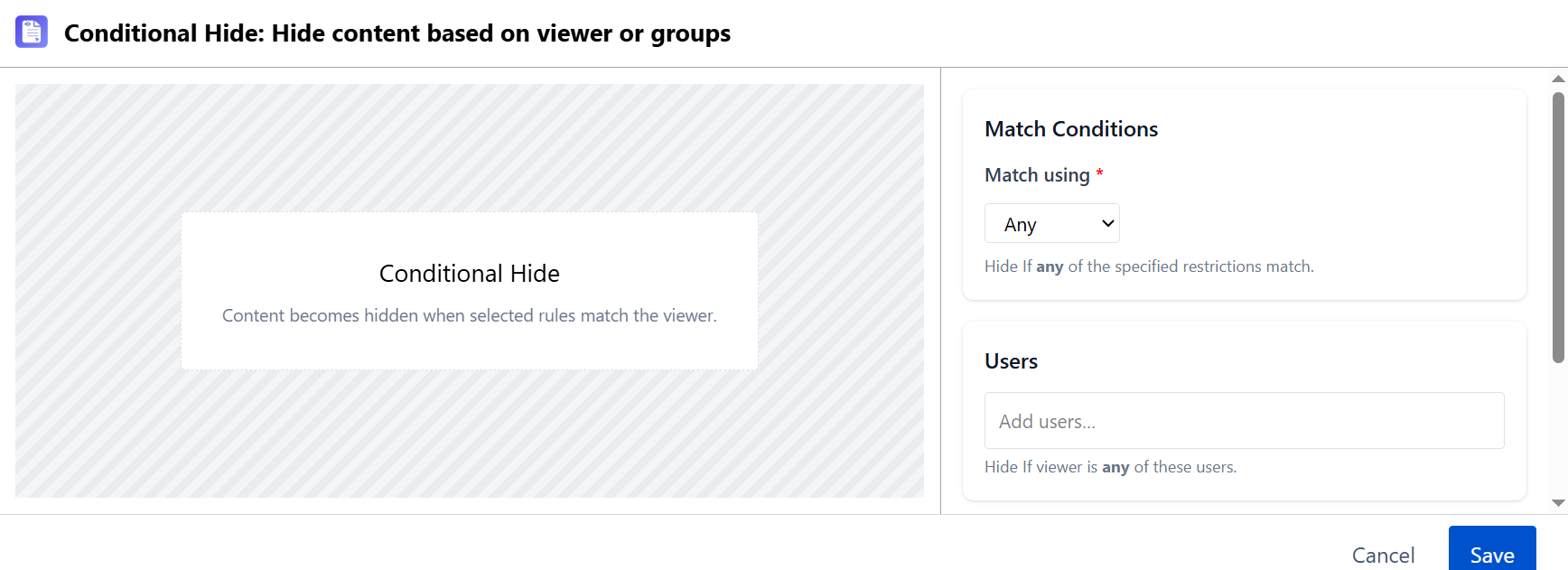
- In the config panel:
- Set Match using to Any (hide if viewer matches any condition) or All (hide only if viewer matches all)
- Under Users, search and select specific Confluence users to hide from (optional)
- Under Groups, search and select Confluence groups to hide from (at least one user or group required)
- Click Save.
- In View mode, log in as a user who matches the condition - the content should be hidden for them
Multiple Conditions
You can stack multiple Conditional Hide macros to hide content from multiple groups. Each macro is evaluated independently.
Troubleshooting
| Symptom | Likely Cause | Fix |
|---|---|---|
| Content still visible when it shouldn't be | Wrong user or group selected | Re-open the macro config and verify the correct user/group is selected |
| Content hidden from everyone | Selected group includes all users | Use a more specific group or switch to individual user selection |
| Content visible in Confluence API response | Expected - conditional macros are UI-only | Use page restrictions for access control |
| No effect in edit preview | Edit mode shows all content regardless of conditions | Switch to View mode to test |