Columns
Columns are the foundation of the Issue List. You choose which Jira fields appear as columns, what order they appear in, and what labels to show.
Adding Columns
- Open the Issue List gadget in edit mode
- In the Columns section, click + Add another field
- Search for the field you want (e.g., "Story Points", "Due Date", "Component")
- Click the field to add it as a column
- Repeat to add more columns
Any Jira field is available - standard fields and custom fields.
Reordering Columns
Drag the handle icon next to a column up or down to change its position. The top of the list = leftmost column in the table.
Renaming Columns
Click the pencil icon next to a column name and enter a new label. The rename only affects the column header in the table - the underlying Jira field is unchanged.
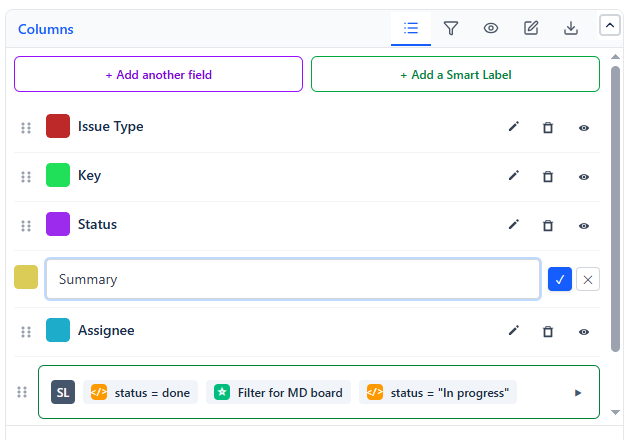
Removing Columns
Click the trash icon next to a column to remove it.
Recommended Column Sets
Start with one of these proven combinations for common use cases:
Sprint Report Key · Summary · Status · Assignee · Story Points · Priority
Bug List Key · Summary · Priority · Status · Assignee · Created · Component
Team Workload Assignee · Key · Summary · Status · Priority · Due Date
Release Tracking Key · Summary · Priority · Status · Assignee · Fix Version · Updated
Triage Queue Key · Summary · Priority · Status · Assignee · Created · Reporter
Tip: Add the Issue Type column to any set - it helps distinguish Stories, Bugs, Tasks, and Epics at a glance without needing to click into each issue.