Getting Started
Quick Start Guide
Get up and running with your first diagram or equation in under 5 minutes.
Who This Guide Is For
- Admins: install and validate the app - see Installation & Setup
- All page editors: insert macros, write content, edit later
Quick Checklist
| Step | Action |
|---|---|
| 1 | Admin installs the app from the Atlassian Marketplace |
| 2 | Open a Confluence page in edit mode |
| 3 | Type / and search for the macro you want |
| 4 | Click the macro - the editor opens automatically |
| 5 | Write or paste your content in the Source panel |
| 6 | Check the Preview panel to confirm rendering |
| 7 | Click Save in the editor, then Publish the page |
Inserting Your First Diagram
- Edit a Confluence page and type
/Diagrams - Click UML Diagrams in the macro list
-
The split-view editor opens - the Source panel is on the left
-
Paste a sample diagram or type your own Mermaid code, for example:
flowchart TD A[Start] --> B{Decision} B -->|Yes| C[Do it] B -->|No| D[Skip it] C --> E[End] D --> E -
The Preview panel on the right renders the diagram live
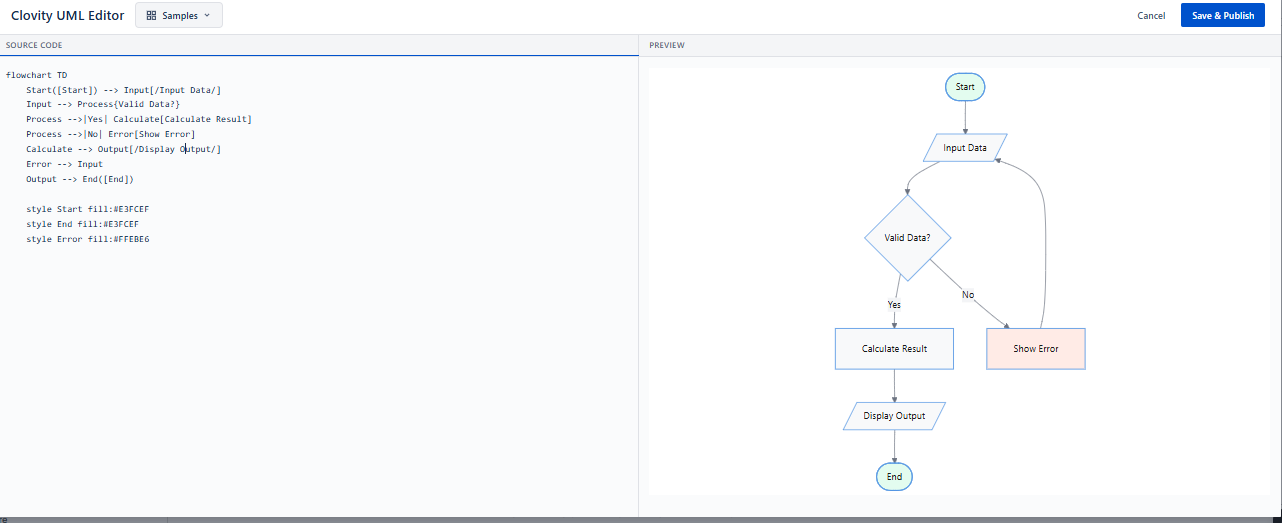
- Click Save - the diagram appears on the page
Inserting Your First Equation
- Edit a page and type
/LaTeX Block - Click LaTeX Block Equations
- In the Source panel, type raw LaTeX - for example:
\frac{a}{b} - Preview renders the equation on the right
- Click Save - the display equation appears on the page
Inserting Inline Math
- Edit a page and type
/LaTeX Inline - Click LaTeX Inline Equations
- In the Source panel, write normal text and LaTeX equations, for example:
The area of a circle is A = \pi r^2 where r is the radius.
- Click Save - the paragraph renders with embedded math
Editing Existing Content
Edit a Diagram or LaTeX Block
- View the published page
- Hover over the rendered macro
- Click the Edit (pencil) icon in the hover toolbar
- The modal editor reopens with your saved source
- Update the content and click Save/Publish
Edit Inline Equations
- Hover over the inline content block
- Click the Edit icon
- Update the paragraph and formulas
- Click Save changes
Pro Tip: Safe Editing Workflow
When making large changes:
- Copy your current source into a temporary note before editing
- Make edits incrementally
- Save and verify rendering at each step
- If something breaks, paste back from your note
Common Paths
- Admin setup → Installation & Setup
- Diagram reference → Diagrams Macro
- LaTeX reference → LaTeX Block Equations
- Inline math → LaTeX Inline Equations
- Code examples → Examples Library