Advanced Content Navigation (Tabs)
Create Custom Tabs
Create Custom Tabs Guide
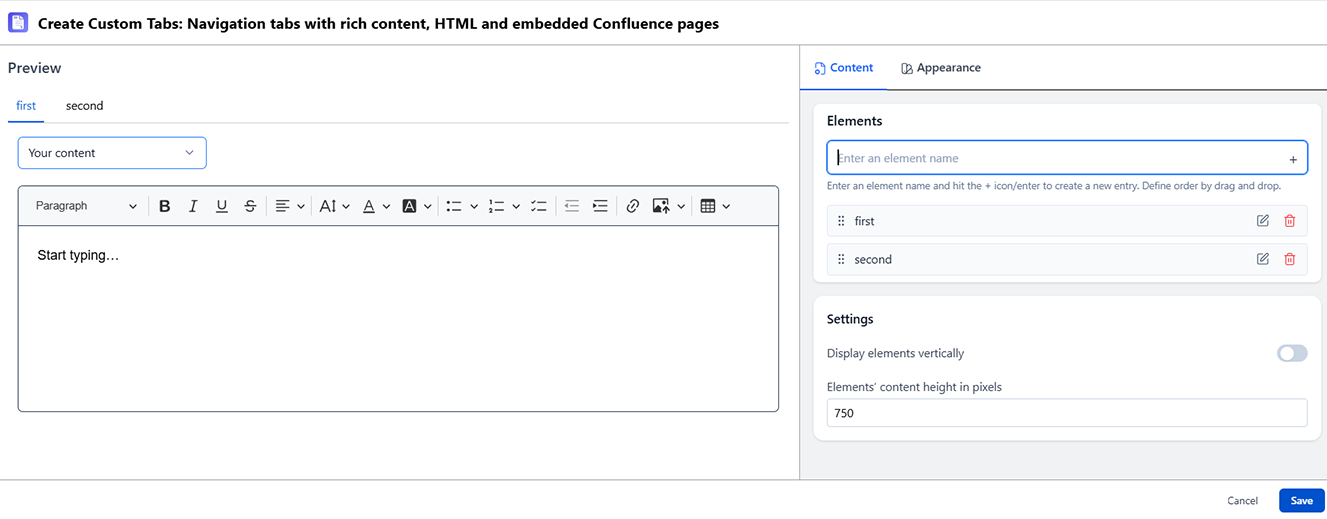
What Are Custom Tabs?
Custom Tabs let you write content directly inside each tab instead of pulling from other pages. Use this when the content you want to tab doesn't exist as separate Confluence pages, or when you want full control over tab content without creating child pages.
When to Use Custom Tabs
- New content being written for the first time
- Content that doesn't make sense as standalone pages
- Small amounts of tabbed content where separate pages would be overkill
How to Create Custom Tabs
- Open your page in edit mode
- Type "/" → search Create Custom Tabs → insert it directly on the page
- In the config panel, add a label for each tab you want
- Click on a tab to select it, then type or insert content inside it
- Drag tabs up/down to reorder
- Publish the page
Three Content Types Supported in Custom Tabs
Type 1 - Rich Text
Type directly inside the tab. Use all standard Confluence formatting: headings, tables, lists, code blocks, inline images.
Type 2 - Included Pages
Use the Confluence "Include Page" macro inside a tab to pull in another page's content. This is a middle ground between Custom Tabs and mapper tabs - you pick the pages but include their content inline.
Tab Limits
- No enforced maximum number of tabs, but more than 10 tabs becomes difficult to navigate on narrow screens
- Tab labels should be kept short (under 20 characters) to avoid wrapping
- All custom tab content is stored on the current page - it is not accessible via direct URL