Advanced Content Navigation (Tabs)
Tab Navigation Overview
Advanced Content Navigation
What Are Tab Macros?
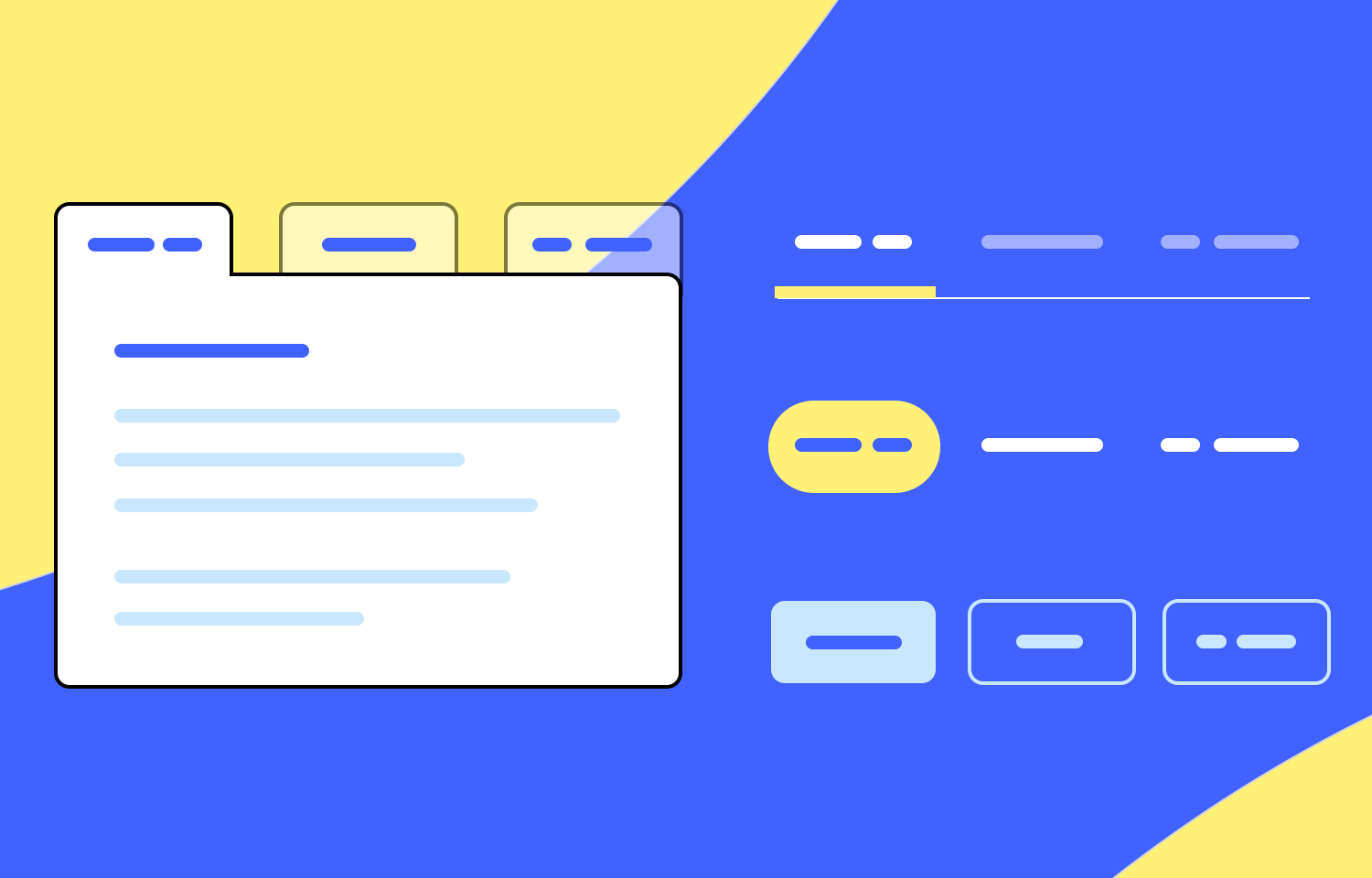
Tab macros let you display multiple sections of content inside a single Confluence page using a familiar tabbed interface. Readers click a tab label to switch views - no page navigation required.
Two Ways to Create Tabs
Method 1 - Content Mapper Tabs (Recommended for Existing Pages)
Insert one of the three mapper macros directly on your page - each macro is standalone and renders the full tab interface by itself.
| Macro | Use When |
|---|---|
| Tab Parent Content Mapper | Tabs load from child pages of a parent |
| Tab Label Content Mapper | You enter a label; every page with that label becomes its own tab |
| Tab Confluence Page Mapper | You want to hand-pick specific pages as tabs |
Mapper tabs are dynamic - tabs reflect the current state of child pages, labeled pages, or the hand-picked page list.
Method 2 - Custom Tabs (Manual Content)
Insert the Create Custom Tabs macro directly on your page. Write content inside each tab in the config panel. Use this when content doesn't already exist as separate pages.
Common Controls (All Tab Types)
| Setting | Options | Default |
|---|---|---|
| Tab style | Underline, Pill, Box | Underline |
| Tab position | Top, Left | Top |
| Default open tab | First | First |
Behavior Notes
- The active tab state is not persisted in the URL - refreshing the page always opens the default tab
- All tab content is rendered in the DOM - Confluence search will find text inside any tab
- Tab macros are fully nestable with other formatting macros (Alert, Background, Cards, etc.) inside each tab's content area