Connecting Gadgets
A Dynamic Filter Controller only works when other gadgets are connected to it. This page explains how to connect Custom Charts and Issue Lists to the controller.
How connections work
Each DFC has a Reference ID - a unique identifier shown in the controller's header. When you configure a Custom Chart or Issue List and choose "Dynamic Filter Controller" as its data source, you select which DFC to connect to using this ID.
Once connected, the gadget stops using its own data source. Instead, it uses whatever the DFC returns based on the current filter state.
How to connect a gadget
- Open the Custom Chart or Issue List gadget in edit mode
- In the Data Source section, select Dynamic Filter Controller
- A dropdown appears listing all DFCs on the same Jira dashboard
- Select your controller (identified by its Reference ID or label)
- Save the gadget
The gadget is now connected. When users change filters on the DFC, this gadget updates in real time.
Verifying connections
To see which gadgets are connected to a DFC:
- View the DFC gadget (not edit mode)
- Click Show Connected Charts
All connected gadgets on the dashboard are highlighted.
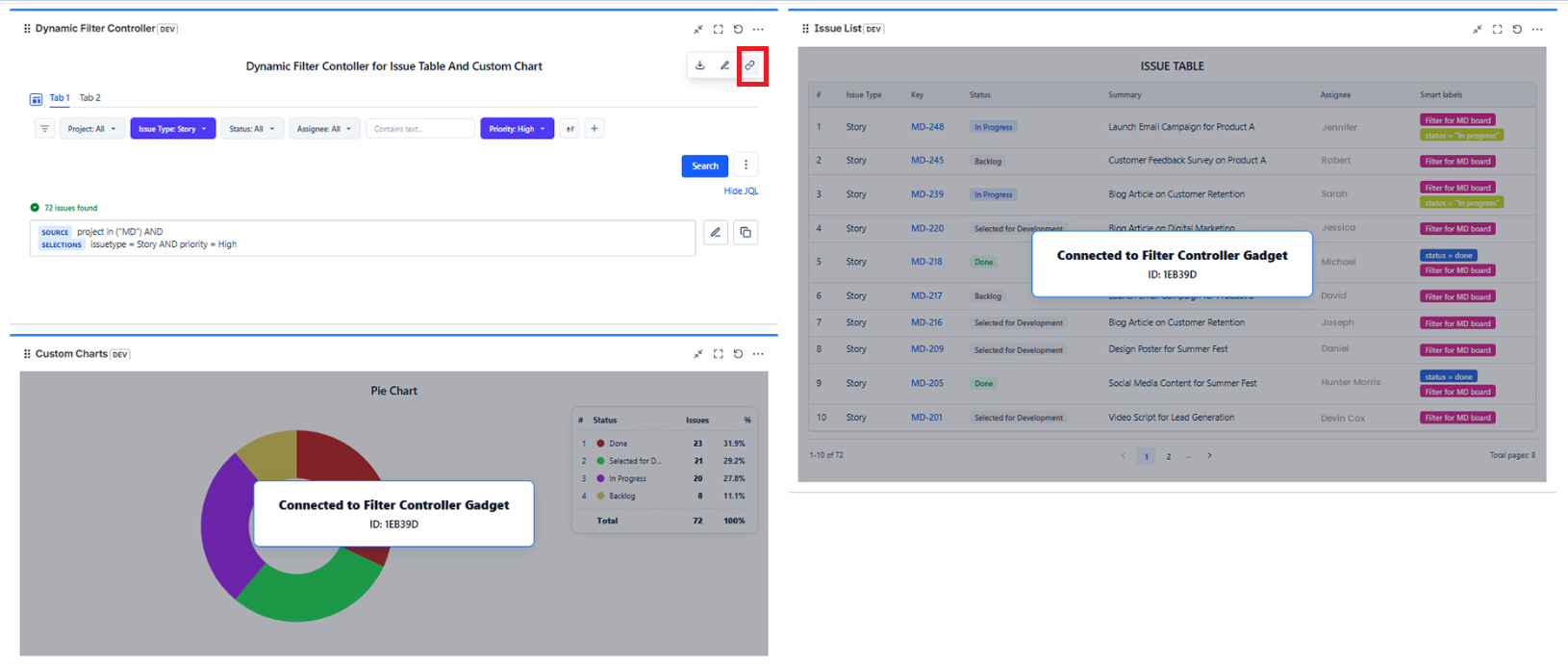
Connecting multiple gadgets
You can connect as many gadgets as needed to a single DFC. One filter bar can control every chart and table on the dashboard at once.
Disconnecting a gadget
- Open the gadget in edit mode
- Change the Data Source from "Dynamic Filter Controller" back to "Projects", "Saved Filter", or "Custom JQL"
- Configure the new data source
- Save
Common connection checklist
| Check | Why it matters |
|---|---|
| DFC and charts are on the same Jira dashboard | Gadgets only see DFCs on the same dashboard |
| DFC is saved before connecting charts | The DFC must exist and have a Reference ID before charts can connect |
| Data source is set to "Dynamic Filter Controller" on each chart | The gadget won't respond to the DFC until its data source is switched |