Tabs
Tabs are preset filter combinations that live on the Dynamic Filter Controller. One click switches the entire dashboard to a pre-configured view.
What tabs do
Each tab stores a named set of filter values. When a user clicks a tab, the DFC loads those values and all connected gadgets update. Tabs let a single dashboard serve multiple views without reconfiguring anything.
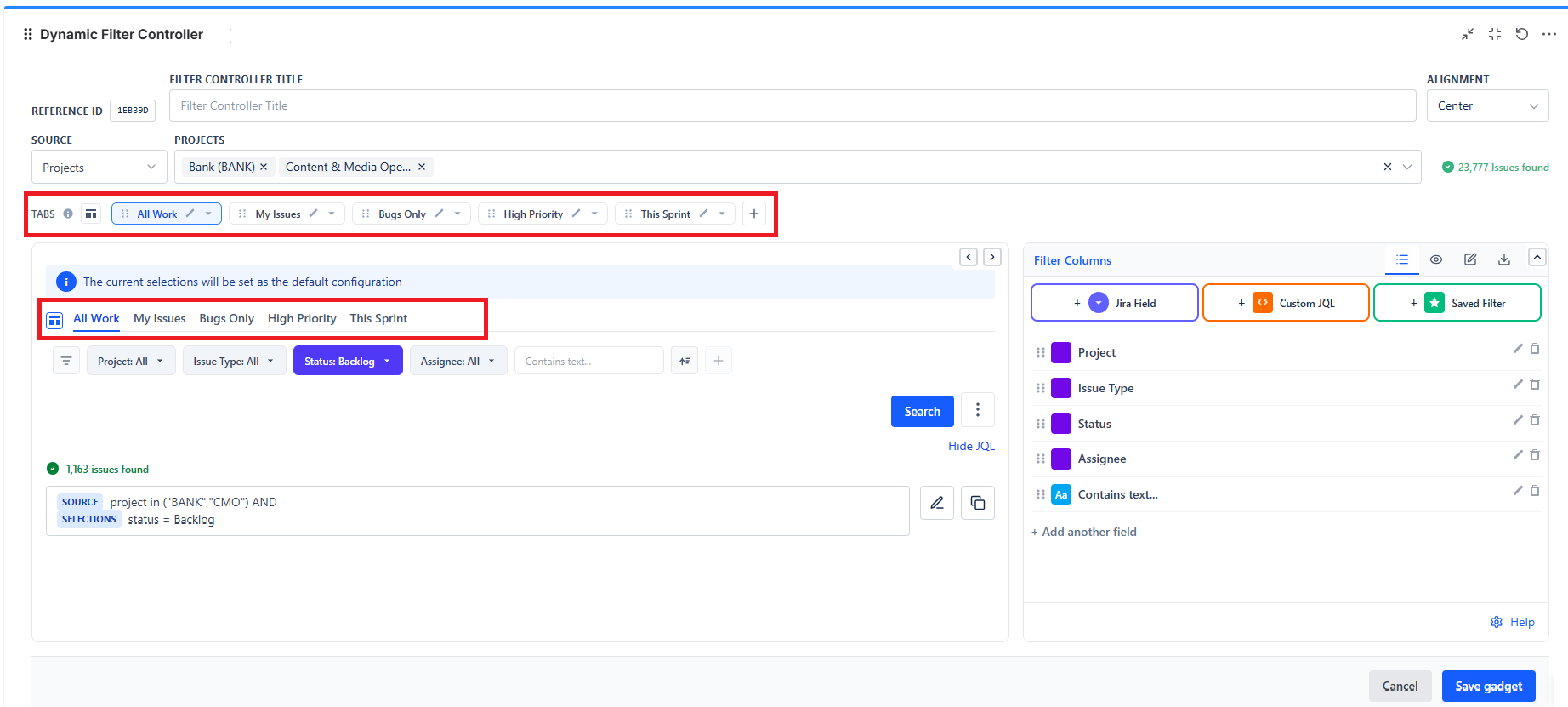
Example tabs on a team dashboard:
| Tab | Filter values |
|---|---|
| All Work | (no filters) |
| This Sprint | Sprint = current sprint |
| My Issues | Assignee = me |
| Bugs | Issue Type = Bug |
| High Priority | Priority = High, Highest |
How to create a tab
- Open the DFC gadget in Edit mode
- In the Live Preview section at the bottom, click the + button next to the existing tabs
- A new tab appears (named "Tab 1", "Tab 2", etc.)
- Click the tab to make it active
- Set the filter values you want this tab to default to
- Rename the tab by double-clicking its name
How to rename a tab
Double-click the tab name in the Live Preview area and type the new name.
How to delete a tab
Hover over the tab and click the X icon that appears.
Note: You must keep at least one tab. The last remaining tab cannot be deleted.
Default tab
The first tab in the list is the default view that loads when the dashboard opens. Reorder tabs by dragging them left or right.
Tabs and filter independence
Each tab stores its own filter values independently. Changing one tab does not affect another. When a user manually adjusts filters while on a tab, those changes are session-only - they reset when the tab is switched or the page is refreshed.