Dynamic Filter Controller
Setup & Filter Types
This page covers how to configure a Dynamic Filter Controller from scratch: choosing the base data source and adding the filter fields your users will see.
Step 1: Set the base data source
The base data source is the issue universe the controller works with. Filter fields narrow within this scope.

| Source type | When to use |
|---|---|
| Projects | Working within one or more specific Jira projects |
| Saved Filter | The team already has a Jira filter that defines the right scope |
| Custom JQL | Need precise, complex scoping beyond what project selection provides |
Example JQL for base source:
project in (TEAM, PLATFORM) AND issuetype in (Story, Bug, Task)
Step 2: Add filter fields
Filter fields are what users interact with. Add one or more from the Fields tab.
- In the DFC edit panel, go to the Fields tab
- Click + Add Field
- Choose the field type (see below)
- Configure the field options
- Repeat for each filter you want
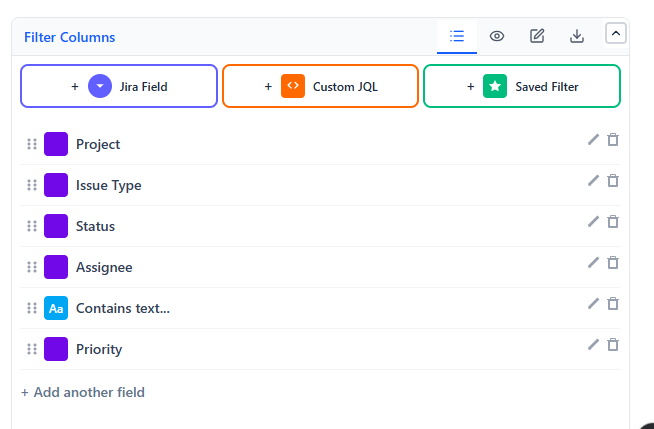
Filter field types
| Type | What users see | Best for |
|---|---|---|
| Jira Field | Dropdown with values from that field | Filtering by Status, Assignee, Sprint, Priority, Labels, Components, Fix Version, etc. |
| Contains Text | Free-text input box | Searching issue summary text |
| Custom JQL | Advanced JQL input box | Power users who know JQL |
| Saved Filter | A toggle button | Switching a pre-saved Jira filter on/off |
Jira Field configuration options
When adding a Jira Field type, you can configure:
- Field name - which Jira field to use
- Label - what to display above the dropdown (defaults to field name)
- Multi-select - allow choosing more than one value at once
- Default value - a pre-selected value that loads when the dashboard opens
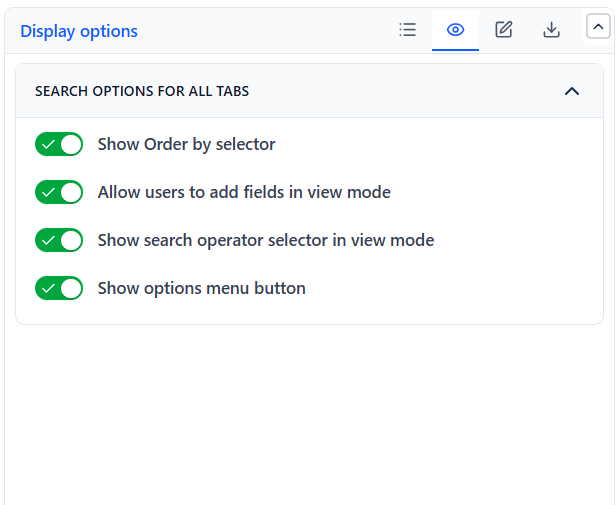
Display options
| Option | What it controls |
|---|---|
| Show Sorting Options | Lets viewers sort connected Issue Lists from the DFC bar |
| Allow Add Fields | Viewers can temporarily add filter fields during a session |
| Show AND/OR Selector | Shows a toggle to switch filter logic between AND and OR |
| Show Options Menu | Shows or hides the options button on the controller |