Features
Edit (Lock/Unlock)
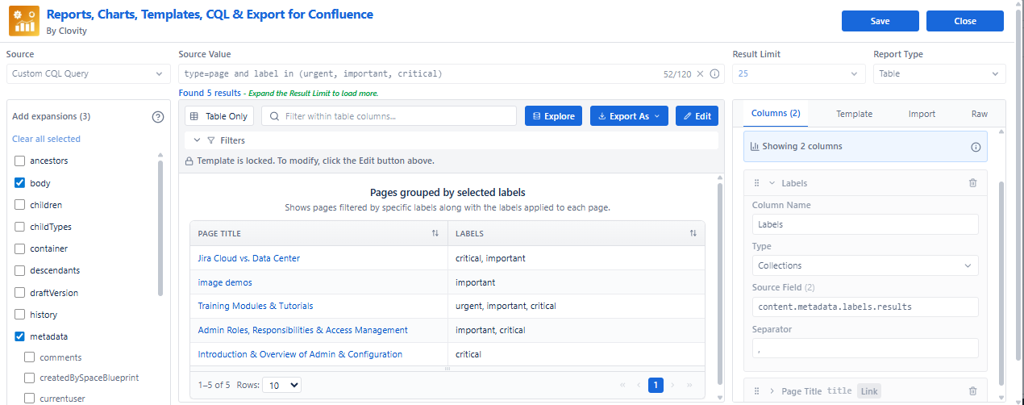
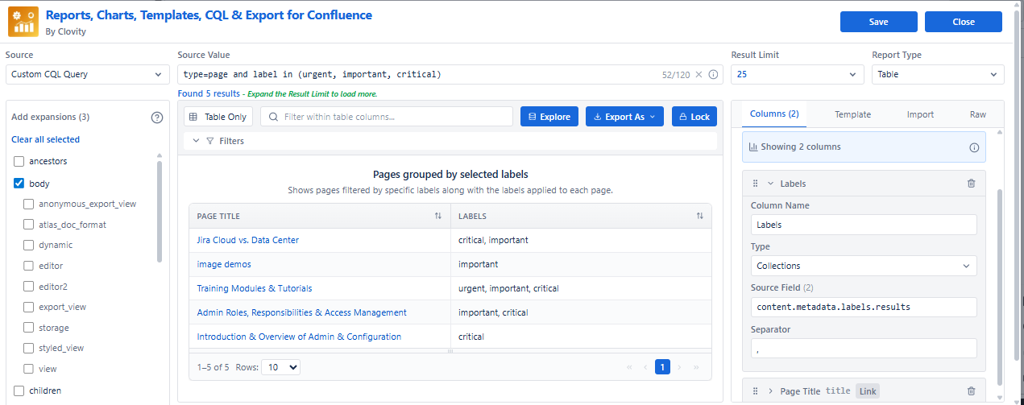
Templates in Reports, Charts, Templates, CQL & Export for Confluence are initially locked to prevent accidental changes. The Edit button in the center panel allows authorized users to unlock a template and modify its configuration.
Overview
| State | What It Means | What You Can Do |
|---|---|---|
| Locked (default) | Template is protected - configuration is read-only | View, preview, and export data - cannot edit columns or settings |
| Unlocked (after Edit) | Configuration is open for editing | Add, remove, reorder columns, change filters, data source, view type |
Purpose
- Protect templates from unintended edits - locked by default after applying
- Allow authorized changes when customization is required
- Prevent accidental column deletion or configuration changes while browsing
How to Use
- Apply a pre-built template from the Templates tab - it loads in locked state.
- Review the results in Live Preview.
- To customize, click the Edit button in the center panel toolbar.
- The configuration unlocks - columns, filters, and settings become editable.
- Make your changes to fields, columns, filters, or data source.
- Click Save to apply updates and publish to the Confluence page.
Note: The Edit lock applies to templates applied from the Templates tab. Reports built from scratch in the Columns tab are always editable.