Features
Explore
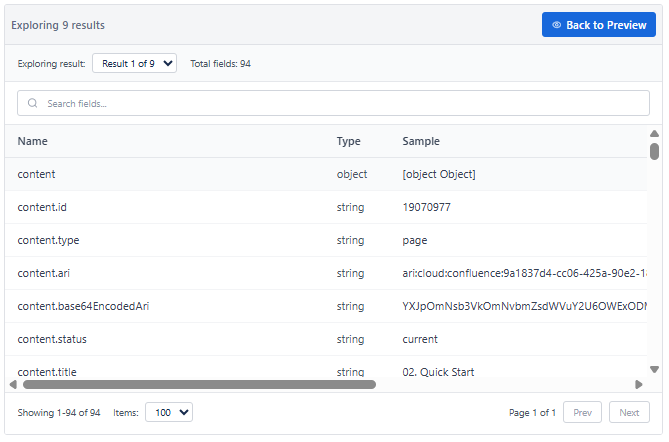
Explore lists all available metadata fields returned by your data source and loaded expansions. It helps you identify the correct fields to use for columns and filters, and shows field types and sample values.
Purpose
| Purpose | Detail |
|---|---|
| Discover available fields | View all metadata fields returned by your current data source |
| Field selection assistance | Identify the correct field path for columns and filters |
| Data type information | See field types (string, number, date, array, object) for each field |
| Sample values | View real sample data to confirm a field contains what you expect |
| Reduce trial and error | Find the right field path without guessing or checking Raw View manually |
How to Use Explore
- Open the macro editor and set your data source.
- Load the required expansions in the left panel.
- Click the Explore button in the center panel.
- Browse through the list of available metadata fields.
- Check the field type and sample value to confirm it's the right field.
- Use the field path in your column Data Value or filter Property settings.
Explore vs Raw View
| Feature | Explore | Raw View |
|---|---|---|
| Shows fields as | Clean list - one field per row | Full JSON structure of a record |
| Field types shown | Yes - clearly labeled | Inferred from JSON value format |
| Sample values | Yes - one sample value per field | Full record data for all fields |
| Best for | Discovering and picking the right field | Verifying exact paths and nested data |
| Ease of use | Beginner-friendly | More detailed - for advanced debugging |
Tip: Use Explore first to discover the right field, then use Raw View to verify the exact JSON path if needed.