Features
Export
Export allows you to download your report data in CSV or JSON format directly from the macro editor or the published report view. Use it to save results for offline analysis, share filtered data with others, or back up report output.
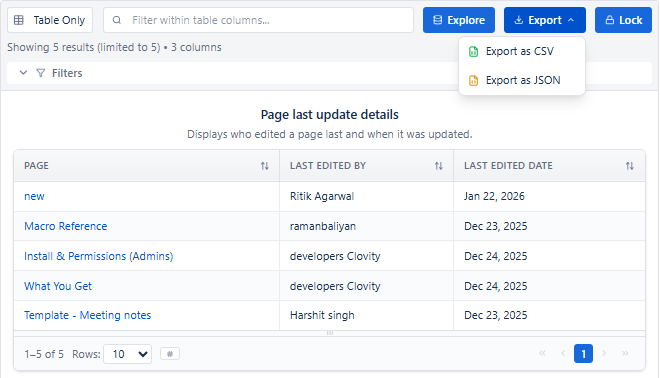
Export Formats
| Format | Best For | How to Open |
|---|---|---|
| CSV | Sharing with stakeholders, Excel/Google Sheets analysis, offline filtering | Excel, Google Sheets, Numbers, any spreadsheet tool |
| JSON | Developer use, API integrations, data backup, programmatic processing | Code editor, JSON viewer, developer tools |
Purpose
- Save report results for offline use and analysis
- Share filtered or formatted data with stakeholders who don't have Confluence access
- Import data into Excel, Google Sheets, or BI tools
- Back up report output at a point in time
- Use data in scripts, automations, or integrations
How to Export
- Open the macro editor (or view the published report on a Confluence page).
- Click the Export button in the center panel toolbar.
- Choose the desired format - CSV or JSON.
- The file downloads automatically to your local system.
What Gets Exported
- All visible columns as configured in the Columns tab
- All filtered data - only records matching your current filters
- Data as shown in Live Preview - what you see is what you export
- CSV is available from Table view; JSON is available from all views
Export vs Import (JSON Recipe)
| Action | What It Does | Found In |
|---|---|---|
| Export (CSV/JSON) | Downloads report DATA - the actual Confluence content records | Center panel Export button |
| Copy JSON (Recipe) | Copies report CONFIGURATION - the setup to recreate the report | Import tab → Copy JSON button |