Rich Content Formatting
Advanced Expand Macro
Advanced Expand Macro
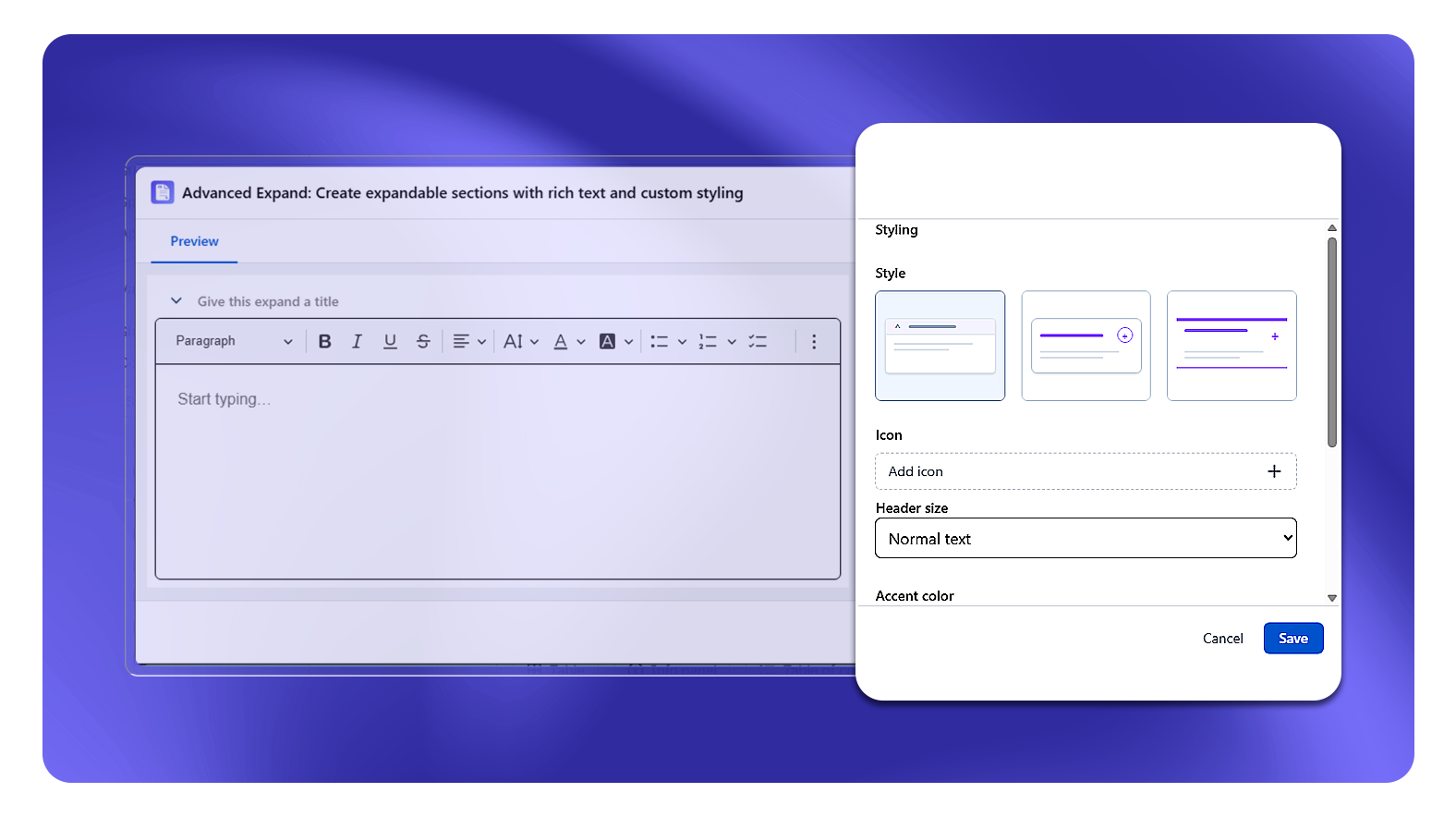
What It Does
The Advanced Expand macro creates a collapsible content section with a styled header. Unlike the standard Confluence Expand macro, Advanced Expand offers styling options for the header (color, icon, size) and supports rich content inside the body.
Configuration Options
| Setting | Options |
|---|---|
| Style | Style A (minimal with arrow), Style B (card with expand button), Style C (bordered/accented) |
| Icon | Optional icon shown beside the header - choose from the built-in icon library or upload an emoji |
| Header size | Normal text, H1, H2, H3, H4, H5, H6 |
| Accent color | Color picker - controls header text and icon color |
| Header background color | Color picker (Style A only) |
Expand Styles
Style A: Minimal header with a left-side arrow indicator. Supports a custom header background color.
Style B: Card-style panel with an expand/collapse button on the right. No background color option.
Style C: Bordered style with a top and bottom accent line. No background color option.
Use the Accent color picker to color-code expand sections by category (e.g., blue for setup steps, green for verification, red for rollback steps).
Common Use Cases
- FAQ pages: Each question is an expand header; answers collapse until clicked
- Long runbooks: Collapse less-common paths by default
- Step-by-step guides: Show one step at a time to reduce cognitive load