Rich Content Formatting
Pop-up Dialog Macro
Pop-up Dialog Macro
What It Does
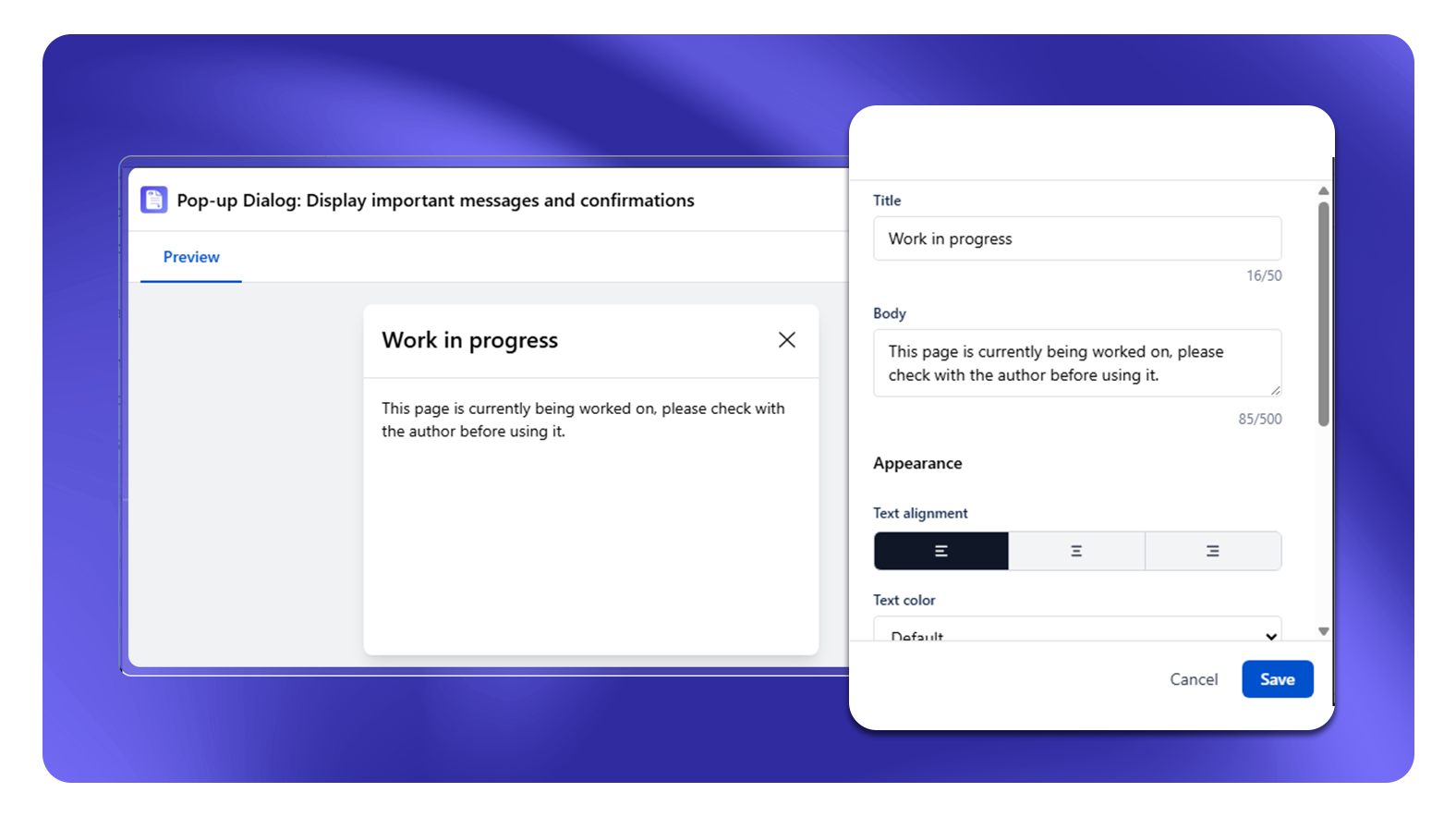
The Pop-up Dialog macro creates a modal overlay that opens when a reader clicks a trigger (button).
Setup
- Insert the Pop-up Dialog macro on your page
- In the settings panel, enter a Title and Body for the dialog content
- A trigger button is automatically added - click the edit icon next to "Pop-up Trigger Added" to customise the button label and alignment
- Readers click the trigger button to open the dialog
Configuration Options
| Setting | Options |
|---|---|
| Title | Text shown as the dialog heading (max 50 characters, required) |
| Body | Message content shown inside the dialog (max 500 characters, required) |
| Text Alignment | Left, Center, Right |
| Text color | Color picker or custom hex |
| Trigger button text | Label on the trigger button (default: "Open Pop-up") |
| Trigger alignment | Left, Center, Right |
Common Use Cases
- Definitions: A "What is this?" link beside a complex term opens a definition modal
- Quick reference: A "Show accepted values" link opens a reference table without leaving the page
- Step detail: "Learn more" link beside a summary opens a detailed step breakdown
Limitation
Pop-up dialogs do not work well as navigation - avoid using them for primary content. If the content is important enough that most readers need it, put it in the page body or a tab, not a dialog.