Rich Content Formatting
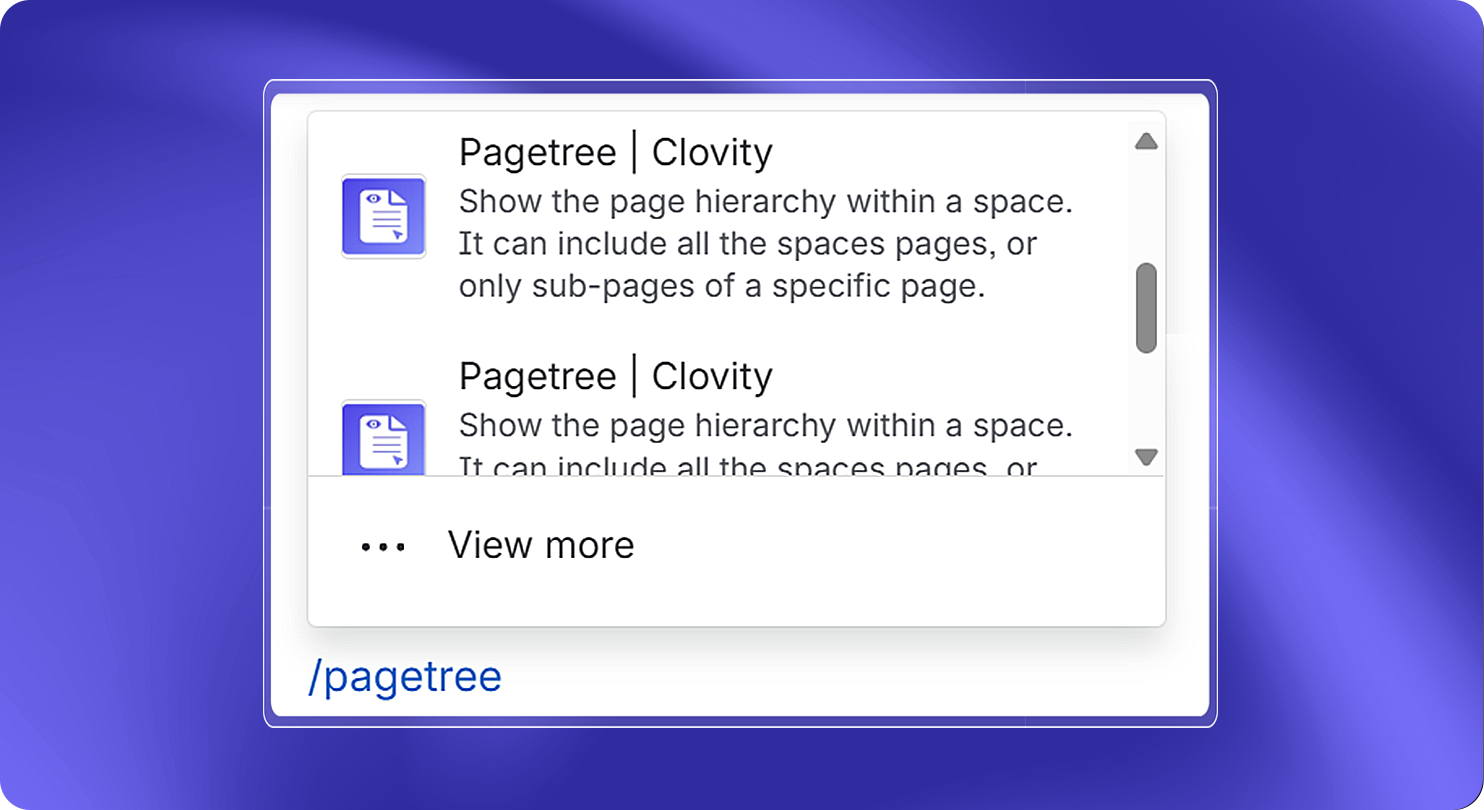
Page Tree Macro
Page Tree Macro
What It Does
The Page Tree macro displays all pages of the current Confluence space in a list when inserted on a page. Readers can see every page in the space and click any page title to navigate to it. The currently selected or active page is highlighted in the list.
How to Set It Up
- Insert the Page Tree macro on your page
- By default, the macro renders all pages in the current space starting from the space homepage - no configuration required
- Optionally, open the config panel to set a Root Page - the tree will then show only that page and its sub-pages instead of the full space
- Publish the page
Common Use Cases
- Space home page: Give readers a complete overview of all pages in the space from a single location
- Navigation panel: Embed the macro on a hub or landing page so team members can quickly find and jump to any page
- Documentation index: Let readers browse the full list of pages in a documentation space without using the sidebar
- Onboarding pages: Help new team members discover all available pages in the space
Behavior Notes
- Only pages the viewer has read permission to access are shown
- Draft pages are not included in the list
- The active/selected page is visually highlighted in the list