Rich Content Formatting
User Profile Macro
User Profile Macro
What It Does
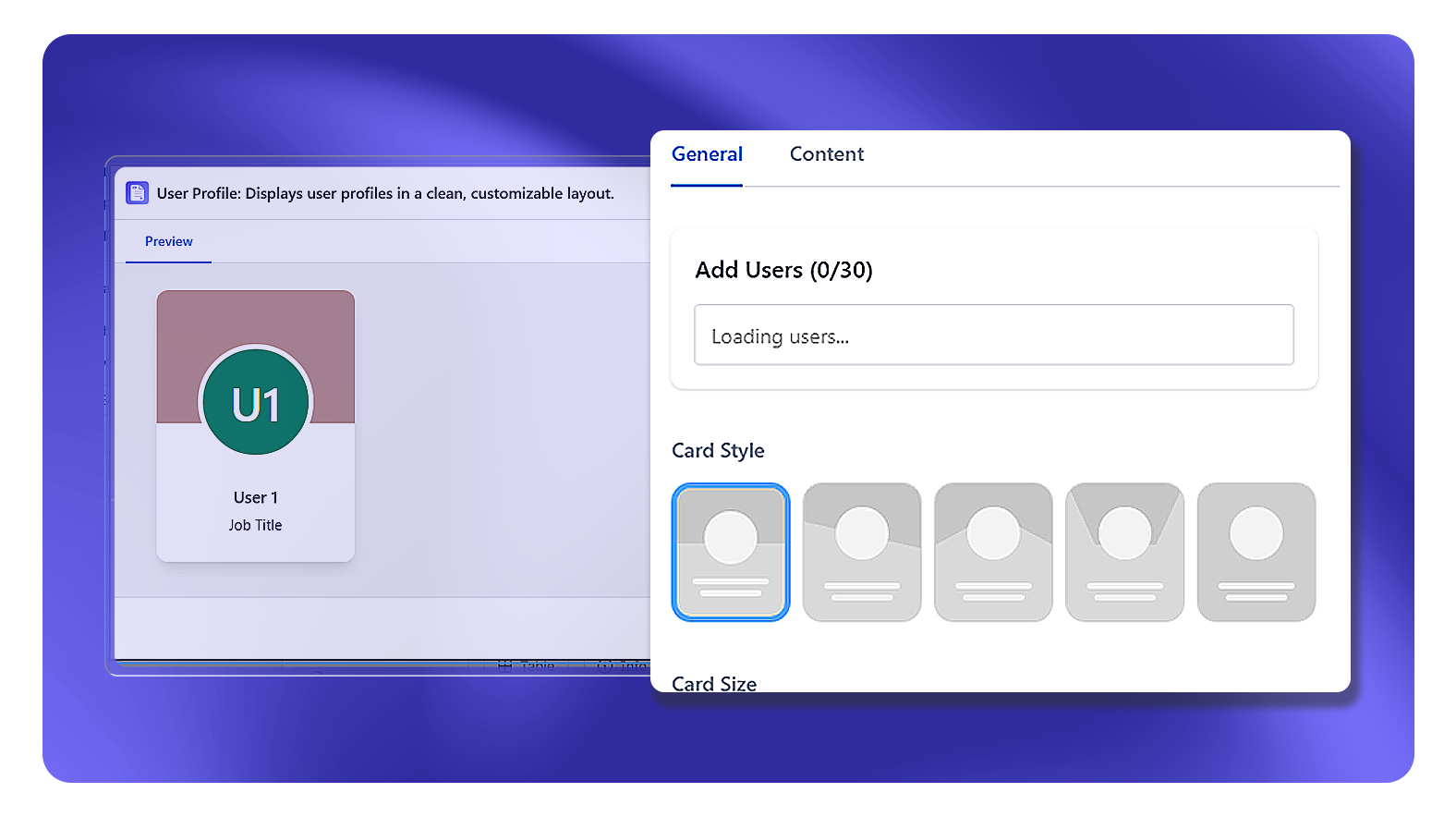
The User Profile macro lets you add up to 30 profile cards on a single Macro. Each card displays a user's name and a custom details field (such as job title), along with an optional image and background color. Card Style controls only the visual appearance of the cards - it does not add or remove information fields.
How to Set It Up
- Insert the User Profile macro on your page
- In the General tab, use the Add Users field to search for and add Confluence users (up to 30)
- Choose a Card Style, Card Size, and set your preferred colors
- Select a Hover Effect if desired
- Switch to the Content tab to fill in details for each individual card
- Publish the page
General Tab Settings
| Setting | Description |
|---|---|
| Add Users | Search and add Confluence users to display - up to 30 users per macro |
| Card Style | 5 visual layout options that change the card's appearance only - no extra fields are added or removed by changing style |
| Card Size | Small, Medium, or Large |
| Name Color | Color of the user's display name on the card |
| User Details Color | Color of the details text (e.g. job title) on the card |
| Shape Color | Color of the avatar shape/background |
| Hover Effect | Visual effect applied when a viewer hovers over a card (e.g. No effect, shadow, lift) |
Content Tab Settings (Per Card)
Each user card has its own Content tab with individual settings:
| Setting | Description |
|---|---|
| User Details | Free-text field (up to 50 characters) - enter the information to show on the card, such as job title, team, or role |
| Background Color | Optional background color for that individual card |
| Image | Optional custom image to display on the card |
| Move backwards / Move forwards | Reorder the card's position within the macro |
| Remove Profile Card | Delete this card from the macro |
Card Style Note
Card Style selects between 5 visual appearances for how the card is laid out. It only affects how the card looks - it does not pull in additional data from Confluence profiles or show/hide extra fields. The information displayed on each card is only what you enter in the User Details field and the user's name.
Common Use Cases
- Team directory: Add all team members, enter each person's role in the User Details field
- Point-of-contact block: Add the relevant person, enter their role or responsibility in User Details
- On-call roster: Add the current on-call person and update the User Details field each rotation
- Escalation path: Add L1, L2, L3 contacts with their escalation level in User Details